Bringing external data into your investigations is easier than ever thanks to the new CSV Import feature. Linkurious users can quickly upload and explore new datasets in the widely supported CSV format without any technical setup or connectors, making for easy integration with external tools that don’t natively connect to Linkurious Enterprise.
With Advanced Mode, users can now work with more complex CSV datasets, importing multiple nodes and edges from the same data.
This article takes a look at how CSV Import works and the value it brings to investigations, from quickly enriching a graph with external information to importing more complex connected datasets. It also shows a short demo video of how CSV Import can be applied to a real investigative use case
The CSV Import feature was designed to give users broad access to all kinds of data in their investigations. CSV files are a universal format—almost every tool can export to CSV—so this makes it easy for users to access external data in Linkurious.
CSV Import allows users to quickly and independently upload data to the platform without any technical knowledge. It is much easier and more lightweight than having to manually ingest data to your data source and makes it easy to turn data that is not originally stored in graph format into connected data that can be explored in Linkurious.
This simplicity means it’s easier to import data from a wide variety of external systems or tools that do not have built-in connectors with Linkurious. The ease of pulling in new data via CSV files makes prototyping and testing out hypotheses faster and smoother.
As an example, imagine you are working for a tax agency combating fraud and tax evasion. For a particular investigation, you want to cross-check certain individuals in your database against some leaked data about offshore companies—but you don’t want to go through a complex IT process in order to do so. CSV Import lets you quickly pull in the leaked data for the investigation you’re working on, so you can observe any suspicious connections that may help build your case.
CSV Import is designed to make it easy to bring external data into Linkurious Enterprise using reusable import templates configured by an administrator.
Depending on the structure of your dataset, you can use a straightforward import configuration or switch to Advanced Mode for more complex scenarios.
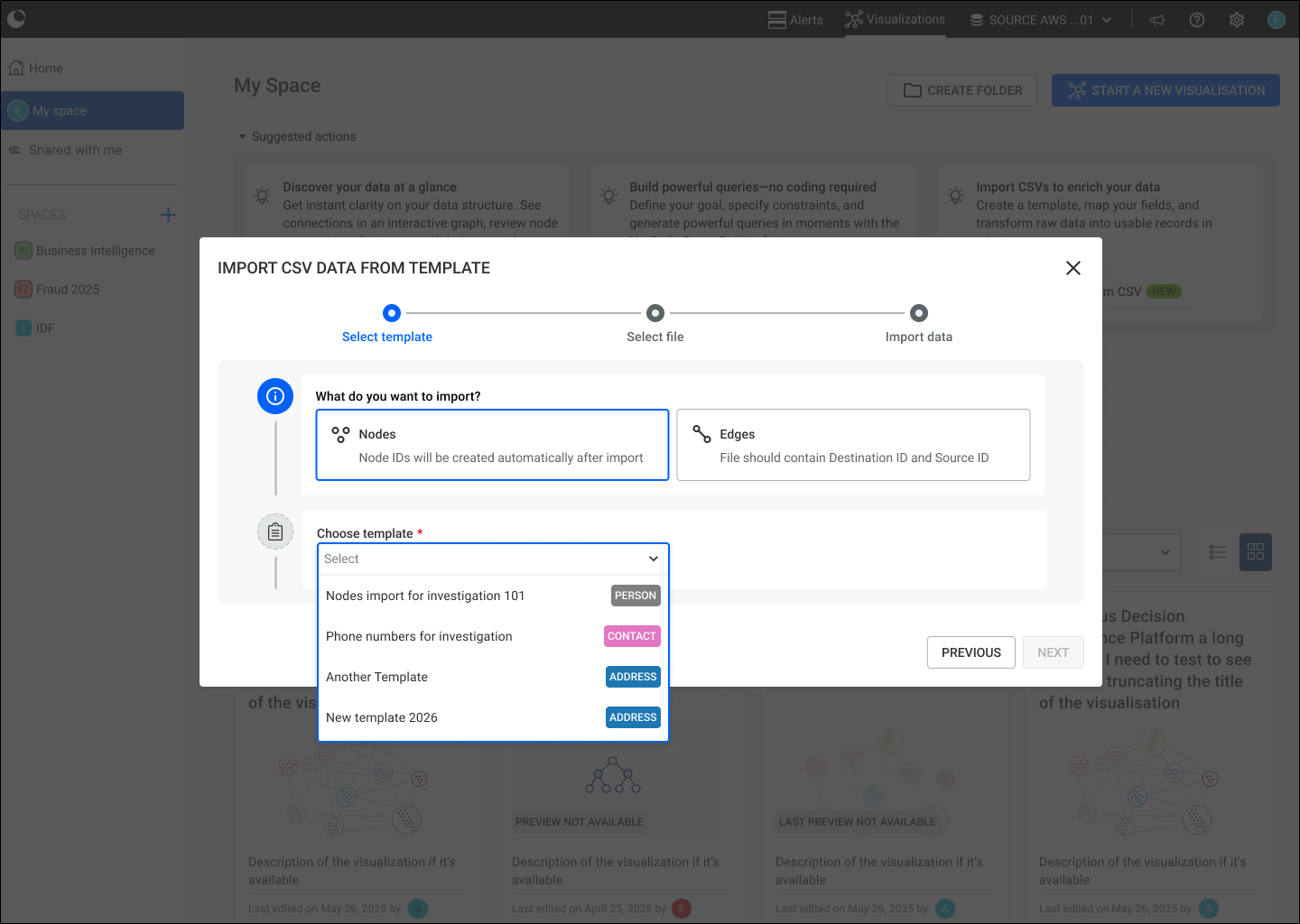
For simpler datasets, using the CSV Import interface, you can select whether you are importing nodes or edges, and then select the import template, which will let you map the data in the CSV file to the data schema that has been defined for your graph database.
Next, you can drag and drop or select the CSV file you’d like to import. In the next step, you’ll see the data in your file mapped against the schema categories. You can check these and adjust if needed.
In the final step, you’ll see a recap of how the data is being mapped. If everything is correct, you can import the data. You’ll see an overview of the data you’ve imported.
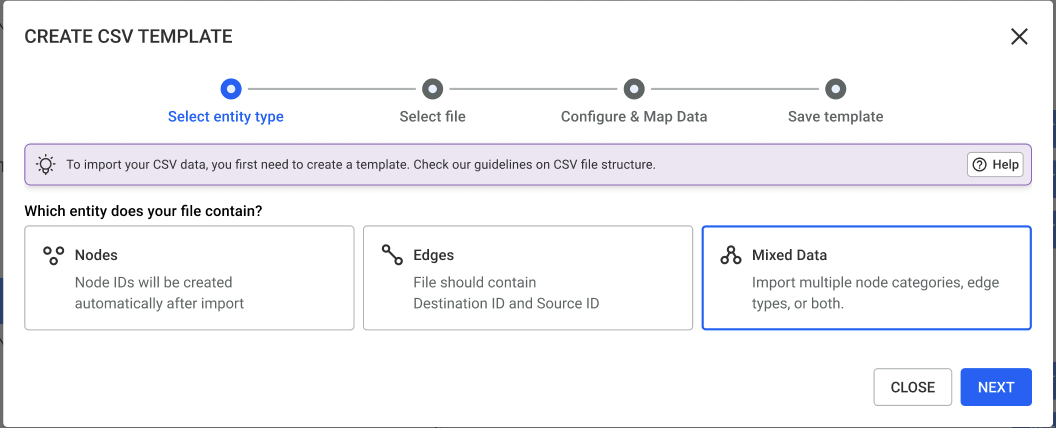
For richer datasets, Advanced Mode gives you greater flexibility over how information from a CSV file is represented in the graph.
It lets you create multiple nodes and relationships from a single CSV row, making it possible to map several connected entities as part of the same import.
Rather than restructuring complex data into multiple files before importing it, you can define those entities and relationships directly within the import configuration.
This makes it easier to bring richer, connected datasets into Linkurious Enterprise while maintaining control over their graph structure.
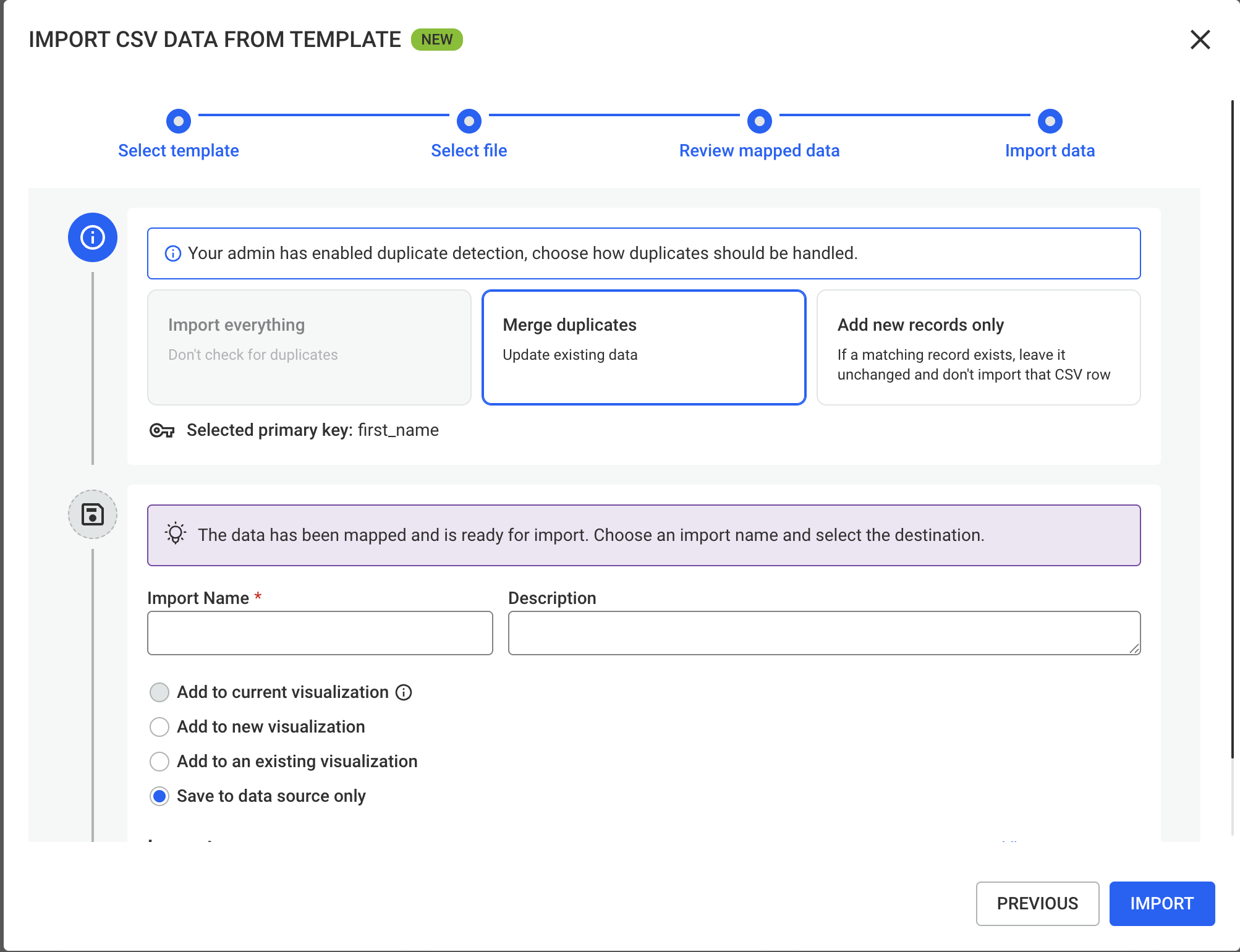
When importing external data into an existing graph, some records may already be there. Linkurious Enterprise automatically detects duplicates during the import process and lets you decide how to handle them before completing the import. You can either merge incoming information with existing data to enrich your graph, or ignore duplicates to avoid creating redundant records.
After the import is complete, you can hop back into your visualization, where you’ll now have access to the newly imported data.
You can then explore relationships, enrich an existing investigation, test hypotheses, or identify new connections using the same graph analysis capabilities available across Linkurious Enterprise.
See what CSV Import looks like in practice. Watch the short demo below to see the steps of importing data, and how external data—in this case, financial transaction data—brings additional valuable context to understanding a network of individuals connected via personally identifiable information (PII).
Ready to see how you can start enhancing your exploration or investigations of connected data using CSV Import? The feature is available and ready to use from Linkurious Enterprise 4.3.2. Read how to set up and start using the feature here.
Not using Linkurious Enterprise yet? Get a free trial to see the platform in action.
A spotlight on graph technology directly in your inbox.