Query AI: Explore graph data with natural language for faster insights, no code needed
Query AI, available in Linkurious Enterprise 4.3 in a stable version, marks a new, significant step in making graph intelligence available to all users, both technical and non-technical. Query AI lets you find specific details and patterns in your data using plain English (or French or German or any number of other languages), no code needed. It instantly generates Cypher queries that you can review, edit, and save, keeping you fully in control.
It works with your preferred LLM (ChatGPT, Gemini, Claude, and more) or a custom LLM, making graph exploration more intuitive and accessible.
This introduction to Query AI shows you how it works and who can use it (spoiler: everyone). We’ll also look at a few use cases to inspire you as you get started using Query AI in your own graph exploration or investigation.
Query AI brings the ease of use of generative AI to your workflows in Linkurious Enterprise. There are plenty of reasons to start using Query AI:
- Speed up your workflows: Querying your data with natural language lets you spend less time on coding.
- Eliminate friction to accessing the insights you need for your graph exploration, critical investigations, and strategic decision-making.
- Make graph intelligence more accessible to more users: Query AI lets anyone ask key questions of their graph model, regardless of their technical ability or coding skills.
Let’s look briefly at how Query AI works, and what you can do with it.
Query AI is easy to set up using the step-by-step instructions in the Linkurious documentation. Once it’s configured, you can access Query AI by right-clicking any open visualization in your Linkurious Enterprise workspace, selecting “Custom actions”, then “Open Query AI”.
Using the Query AI interface, you can write prompts about your data—from simple ones to more complex requests. For example, you could write, “Show me all companies with a risk score greater than 7.” After a few seconds, a graph query will be generated. From here, you can choose to run the query to preview the result, edit the generated Cypher code manually, or continue the conversation with Query AI to improve or build on the graph query incrementally. Once you run your query, the results will display as a graph visualization. You can also save queries generated by Query AI for future use.
Ready for some inspiration for what you can do with Query AI? Let’s look at a few examples across different use cases.
For some financial crime investigations, you might need to quickly look up a select group of individuals to visualize the networks around them to spot any suspicious activity or connections. Say, for example, you receive a list of individuals in a suspected fraud or money laundering network from a colleague, the police, or an external partner.
Query AI lets you start your investigation by displaying all of these person nodes. Getting a query to kick off your investigation is faster than having to search for each person in the search bar in Linkurious and manually adding them to the graph.
Here’s what this would look like using Query AI:
In this example, we’re looking up person nodes using ID numbers, but you could use this same data to start a visualization with bank accounts associated with those ID numbers, IP addresses, or any number of other node types.
A common hallmark of fraud networks or synthetic identity fraud is shared pieces of personally identifiable information (PII). You might want to start a fraud investigation by visualizing networks of individuals sharing information.
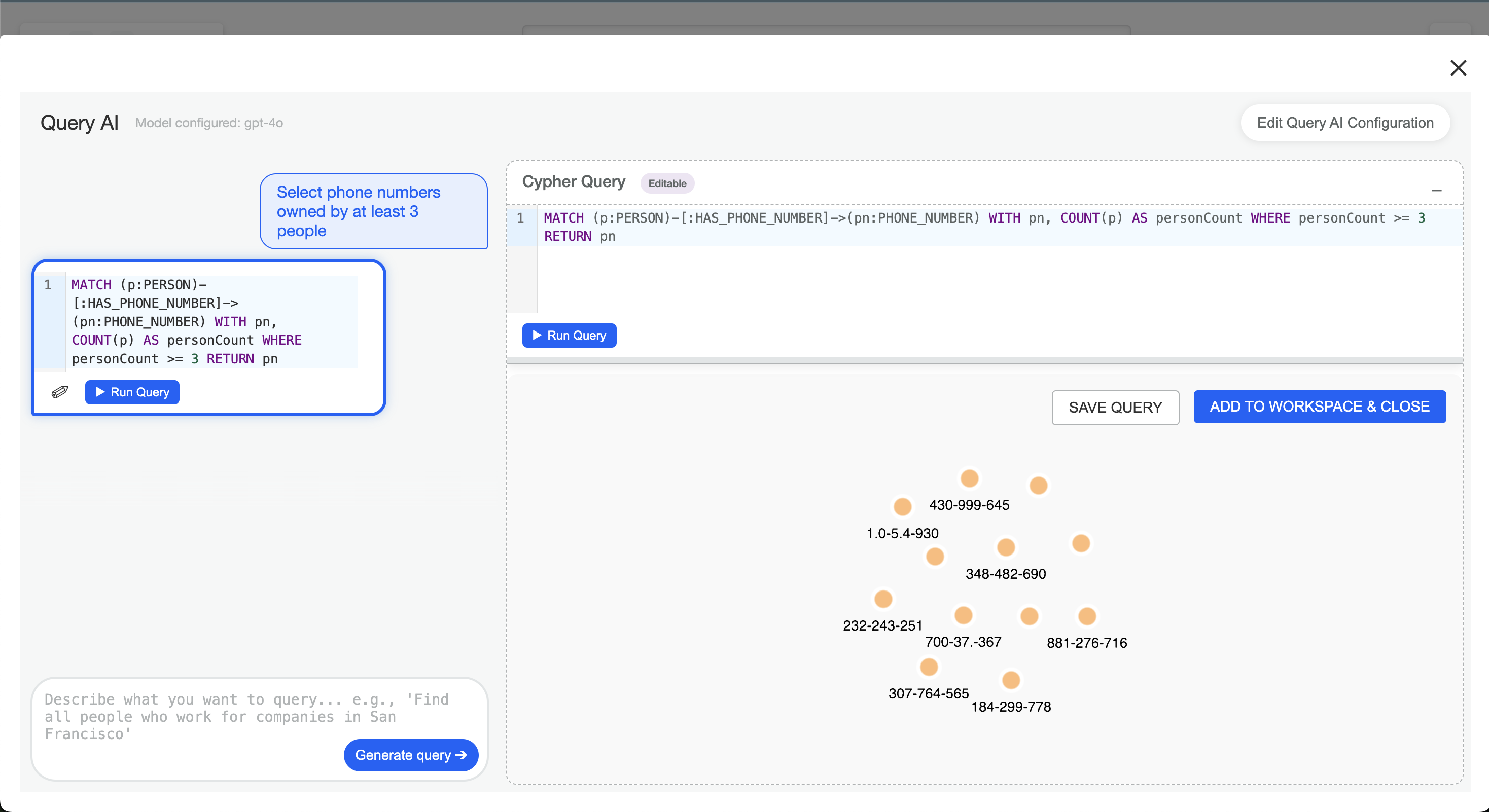
To do this, you could ask Query AI to show you phone numbers owned by at least 3 people:
By running this query, you can jump into your investigation by identifying suspicious phone numbers.
You could add nuance to a query like this by asking Query AI to select phone numbers owned by at least 3 people and that are living in the same region or same department. You could also ask it to identify other pieces of shared information.
Financial institutions need to understand ultimate beneficial owners (UBOs) of companies for KYC and compliance reasons. It’s crucial to understand who ultimately has control over a business.
Identifying UBOs is also often important for investigators trying to get to the bottom of financial crime cases.
Mapping out complex business structures can be complex and time-consuming. But a graph query can quickly display a full ownership network. Using Query AI, you could ask, “Map all stakeholders for Gamma Realty company, including both direct and indirect shareholders or officers, up to 10 degrees of separation.”
This query avoids the end user having to expand the nodes around a company multiple times while avoiding a visualization cluttered with other types of nodes that are not people or companies.
Ready to get started exploring your graph data using natural language? Query AI is ready for you to use while keeping your data fully secure. Query AI works with custom, self-hosted LLMs, allowing you to work without commercial third-party vendors. And if you do work with a commercial LLM, Query AI will never share any data, only transmitting your graph schema (the list of node labels, edge types, and property names) so that the LLM can correctly generate a graph query.
Using Query AI in Linkurious Enterprise just requires a quick set-up and then you can start querying your data more easily than ever before.
Not using Linkurious Enterprise yet? Get a free trial to see the platform in action today.
A spotlight on graph technology directly in your inbox.